Your phone is the remote.
Control your PC over Wi-Fi and your TV over Bluetooth — trackpad, keyboard, media, and more.
Up and running in three steps
No account, no cloud — your phone talks directly to your own devices.
Install Padly on your phone
Grab it free from Google Play and open it — no sign-up needed.
Connect
For your PC: run the tiny Padly Helper on Windows and scan its QR code. For your TV: pair over Bluetooth — no software needed on the TV.
Control it
Trackpad, full keyboard, media remote, laser pointer — all from the phone already in your hand.
Everything you need, in one app
Eight tools that make your phone the only controller you'll reach for.
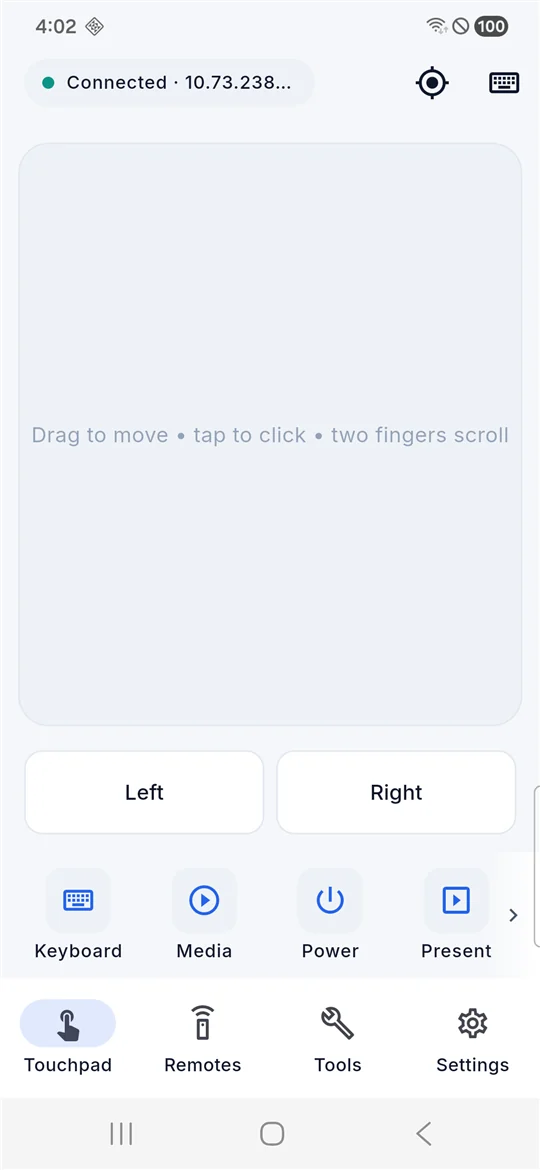
Trackpad
Smooth cursor control with tap to click, two-finger scroll, left/right buttons, and a quick-action row.
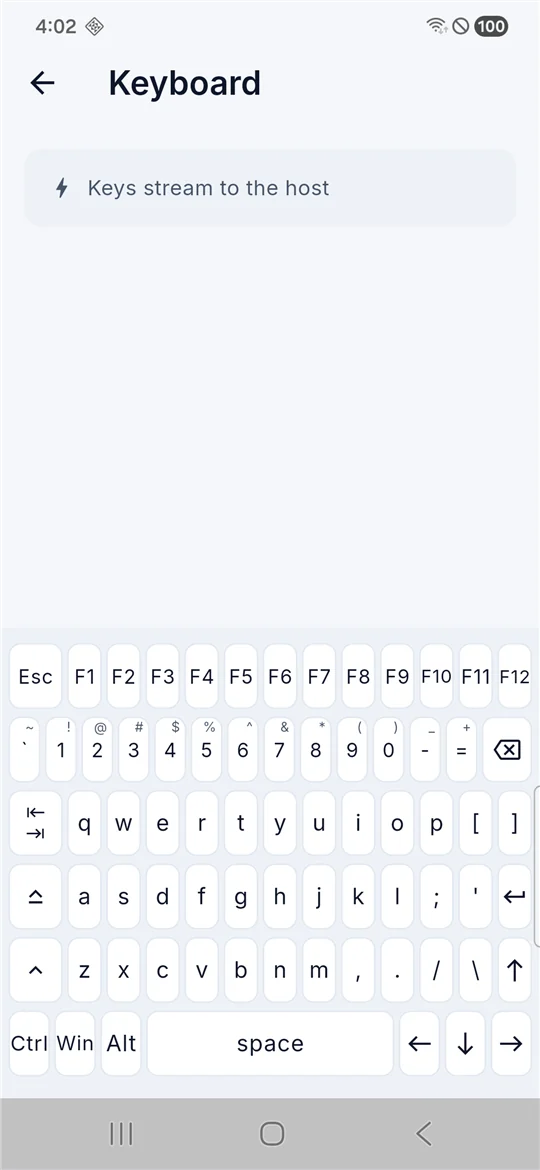
Full keyboard
A real PC layout: F1–F12, number row with symbols, Ctrl/Win/Alt, and inverted-T arrow keys.
Laser pointer
Tilt your phone to move an on-screen pointer — great for presentations, works on supported TVs too.
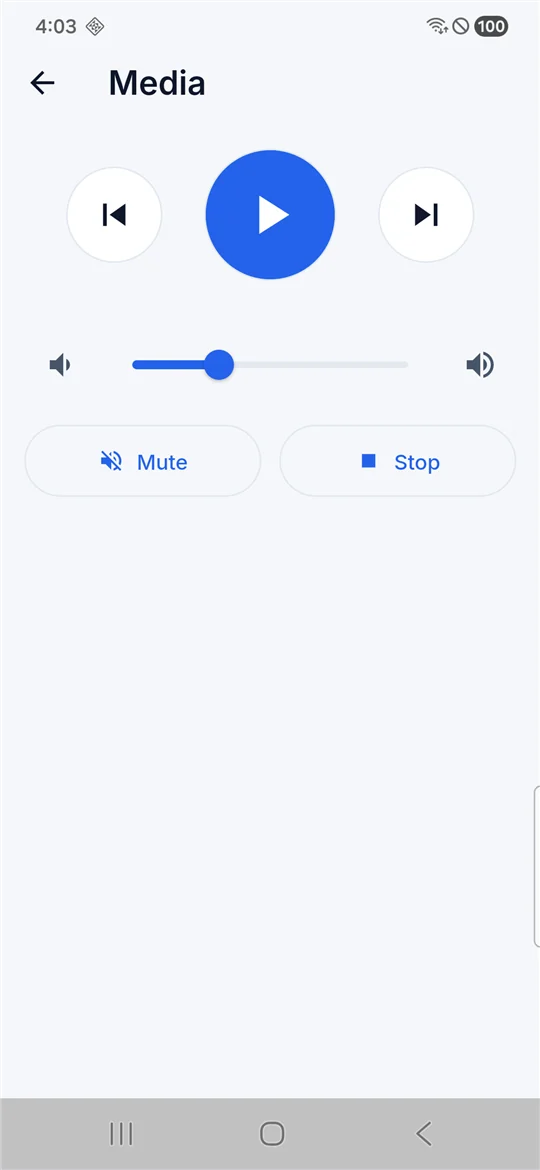
App Remote
Play/pause, rewind, forward, and volume for whatever media app is focused on your PC.
File Transfer
Send files from phone to PC — the app shows you exactly where they land.
Clipboard Sync
Copy on the phone, paste on the PC — and the other way around.
Document Scan
Scan a document with your phone camera, right from the app.
Volume Control
Adjust PC volume from the phone, with an on-screen indicator on the PC.
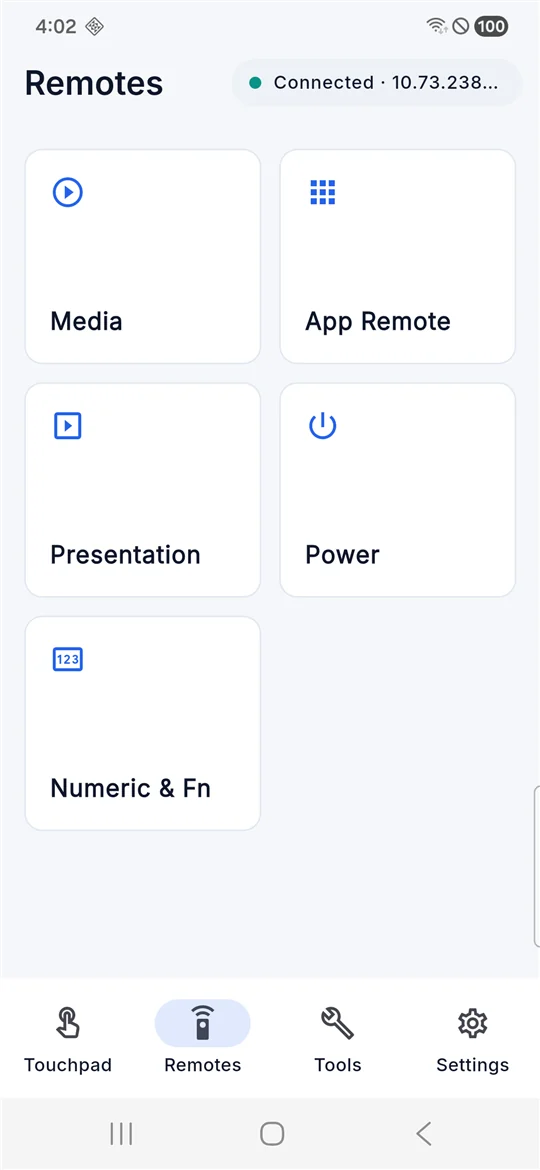
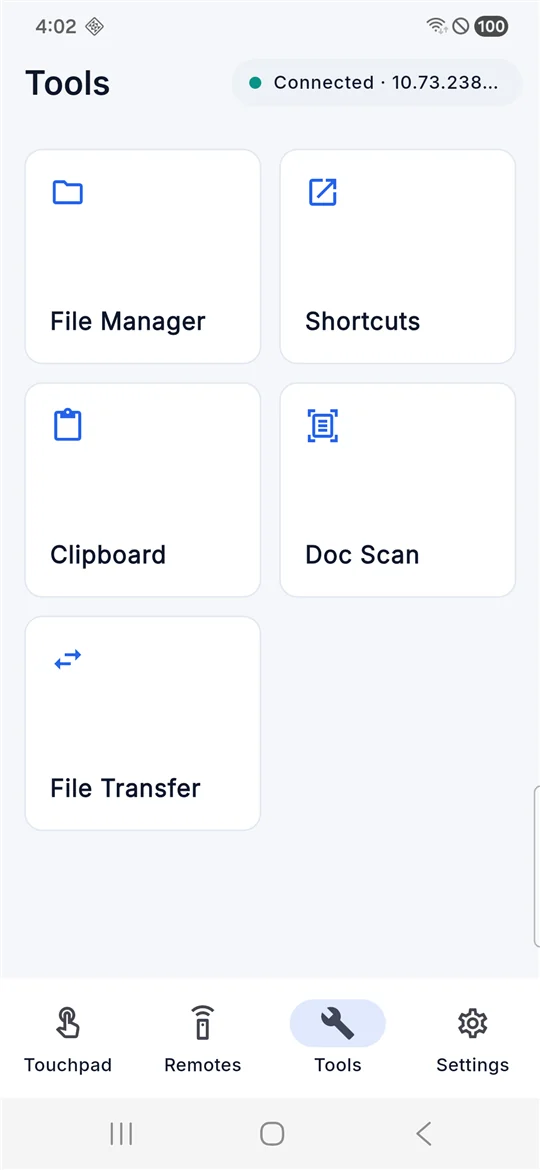
See it in action
Real screens from Padly v1.0.0.
Download & install
The phone app is all you need for TV control. Add the free PC Helper to control your Windows PC.
Android app
On Google Play — a normal install, no special steps.
- Tap Get it on Google Play to open the listing.
- Install Padly like any app.
- Open it — you're ready to connect.
Windows PC Helper
Only needed for PC control — not for TV.
- Download Padly Helper (.exe) below.
- Run it. If Windows SmartScreen warns, click "More info → Run anyway" — it's an unsigned indie app.
- Allow it through the firewall if Windows asks, so your phone can reach it on your network.
- A window opens with a QR code — in Padly, tap Add → Scan QR.
Requirements & compatibility
Phone
Android — install free from Google Play.
PC control
A Windows PC running the Padly Helper, on the same Wi-Fi network as your phone.
TV / console
Any device that accepts a Bluetooth keyboard & mouse — no software needed on the TV.
Note: some set-top boxes filter out phone-class Bluetooth devices and may not detect Padly. That's an Android platform limitation, not a bug.
Frequently asked questions
Is Padly free?
Yes — Padly v1.0.0 is completely free.
Is my data sent anywhere?
No account is needed, and nothing is routed through our servers. Your phone and PC talk directly over your local Wi-Fi, and your TV connects over Bluetooth. See our Privacy Policy for details.
Does it work on Mac?
The PC Helper is Windows-only right now. TV and console control works over Bluetooth without any helper app, so that part doesn't depend on your computer at all.
Why can't my set-top box find Padly over Bluetooth?
Some set-top boxes filter out phone-class Bluetooth devices, so they never show Padly in their pairing list. This is a platform limitation outside the app's control. Smart TVs and devices that accept a standard Bluetooth keyboard/mouse generally work fine.
Is the PC Helper's "Run anyway" warning safe?
Windows SmartScreen shows that warning for any app that isn't code-signed with a paid certificate — which indie apps often aren't. The Helper is the official Padly companion downloaded from this site; it runs locally on your PC and only listens for your phone on your own network. Choosing "More info → Run anyway" is how you proceed.